OPM Flow Job Properties
Overview
When you select an OPM Flow Job in the Scripts/Jobs project tree, the property editor allows you adjust the job settings.
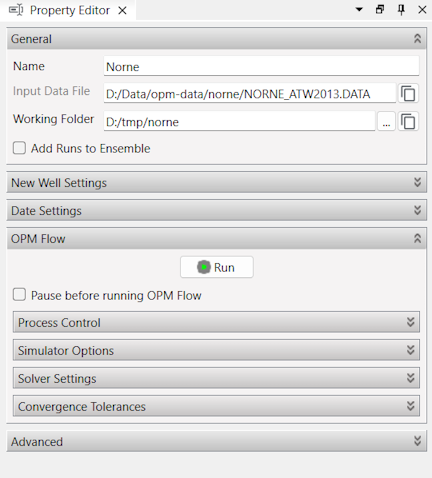
General Group
Name: The name of the job. The name will also be used for the generated DATA file that is sent to OPM Flow when you start the job.
Input Data File: Shows the input selected when the job was created. It is a read only setting. If you want to use a different input file, you will have to create a new job.
Working Folder: This is the folder where the generated DATA file will be saved, and where the output from the OPM Flow Simulation will we written. It is recommended to not share this folder with other jobs, as this might cause files to be overwritten or corrupted.
Add Runs to Ensemble: If this option is turned on (checked), the output from a simulation run will be written into a new sub-folder in the working folder every time you run the job. The first time you run, output will be in “run-0”, then “run-1” and so on. The Advanced group at the bottom of the properties editor shows you what the next run ID will be and allows you to reset this to 0.
Additionally, the output from each run will automatically be added to both grid and summary ensembles in ResInsight, i.e. adding new realizations to ensemble summary plots.
New Well Settings Group
The Add a new well page describes how to use these settings.
OPM Flow Group
Run: Click the Run button to start the OPM Flow Simulation. Refer to the Running an OPM Flow Job page for more information about this.
Pause before running OPM Flow: When this option is turned on (checked), ResInsight will generate all the input for OPM Flow in the working folder, and then ask the user if the job should be started or not:
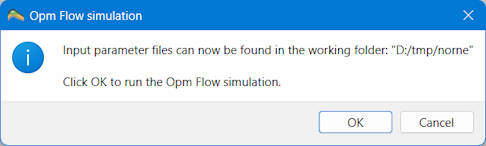
This allows you to manually check and/or edit the generated DATA file in a text editor before OPM Flow is started. Click OK to start the job or Cancel to not start it.
Process Control, Simulator Options, Solver Settings, Convergence Tolerances: These groups allow you to control the command line parameters sent to OPM Flow when you run the job. The default settings are read from the OPM Flow global preferences when the job is first created.
Date Settings Group
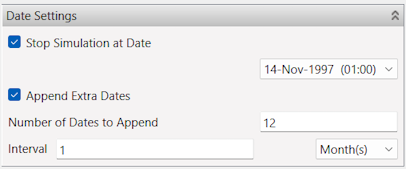
NOTE: These settings only works if the input DATA file contains DATE keywords.
Stop Simulation at Date: If this option is turned on (checked), the simulation will stop at the selected date (an END keyword will be inserted).
Append Extra Dates: If this option is turned on (checked), extra dates will be added at the end of the schedule section.
Number of Dates to Append: Set how many DATE keywords to append.
Interval: The interval in either days or months between each added DATE keyword.